AI Press Release Assistant
The AI Press Release Assistant helps you polish your press release without leaving the editor. Ask it to fix grammar, tighten your copy, or make a custom change — then review every suggested edit before anything is applied.
How it works
The assistant lives inside the press release body editor. It understands press release conventions — third person voice, no release date line, no headlines inside the body — and knows your company details, using them only when your request calls for them.
Nothing is ever changed automatically. Every suggestion appears as a tracked diff you can accept or reject, one paragraph at a time.
Opening the assistant
There are four ways to start:
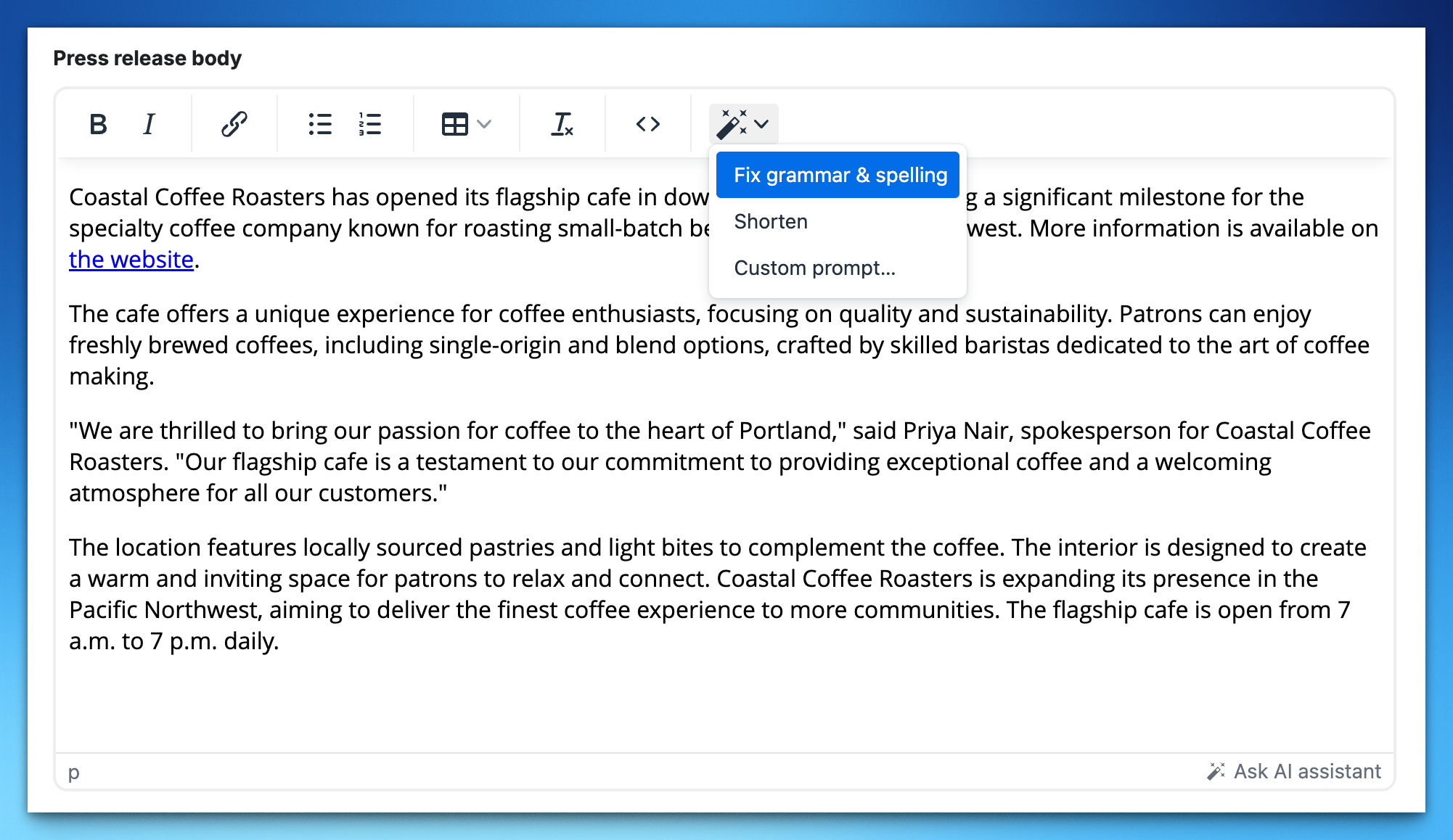
- Toolbar wand — click the magic-wand button in the editor toolbar.
- Select text — highlight a sentence or paragraph and a floating wand menu appears above your selection.
- Right-click — select text and right-click to open the "AI Assistant" menu.
- "Ask AI assistant" — the button in the bottom-right corner of the editor.
If you select text first, the assistant works on just that selection. With nothing selected, it works on the entire press release body.
Actions
- Fix grammar & spelling — corrects grammar, spelling, and punctuation without changing your tone or wording.
- Shorten — makes the text more concise while keeping key facts, your opening line, and any quotes intact.
- Custom prompt — tell the assistant exactly what you want, for example "rewrite the opening to be punchier", "make this sound more confident", or "add a closing sentence linking to our website".
Reviewing changes
When the assistant responds, the editor switches into review mode with suggested edits shown inline:
- Removed text appears struck through in red, new text highlighted in green.
- Each changed paragraph is a single change you can accept (✓) or reject (✕).
- Use the arrows to step through changes one at a time, or Apply remaining / Skip remaining to handle them all at once.
- Toggle Diff and Preview to switch between the markup view and the clean result.
Accept what you like, reject what you don't — only the changes you approve are applied. If the assistant doesn't think anything needs changing, it will tell you and leave your text untouched.
Tips
- Start with a selection when you only want to change one part — it keeps the edit focused and the review short.
- Be specific in custom prompts. "Make the second paragraph more concise and remove the marketing language" gives a better result than "improve this."
- Review before you publish. The assistant is a drafting aid — always read the final result, especially facts, names, and figures.
- For guidance on what a strong release looks like, see the Press Release Writing Guide.
FAQ
Does it change my press release automatically?
No. Every suggestion is shown as a reviewable diff. Nothing is applied until you accept it. Reject everything and your release stays exactly as it was.
Does it work on a selection or the whole release?
Both. Select text to edit just that part; with nothing selected, the assistant works on the entire body.
Will it add a date line or headline to the body?
No. The assistant follows press release formatting standards and won't insert a release date, "for immediate release" line, or headings inside the body — those are handled separately by Press Ranger.
Can it use my company information?
Yes, when your request needs it. The assistant has access to your company name, website, description, and similar details, but only uses them when you ask (for example, "add a sentence linking to our website"). It won't insert boilerplate you didn't request.
Can I undo changes after they're applied?
Yes. Use undo (Ctrl/Cmd + Z) in the editor to reverse applied changes.