Media Rooms
What is a Media Room?
A media room is a public page where journalists and media professionals can find everything they need about your company: press releases, press contact info, social links, logo, and company description. Instead of emailing assets back and forth, you point reporters to one URL that always has the latest information.
Each company you create in Press Ranger gets its own media room. You can see an example at pressranger.com/media-rooms/press-ranger.
Setting Up Your Media Room
- Navigate to Your Companies in the dashboard.
- Edit the company you want a media room for.
- Fill in the company's logo, description, website, social media URLs, and press contact information.
- Under Media Room and privacy settings, check "Make my media room public."

- Save your changes.
Your media room is now live and accessible from its unique URL.
What the Media Room Displays
The media room includes a sidebar and a main content area.
Sidebar:
- Company logo with a download link so journalists can grab it directly
- About section showing your company description
- Press contact including contact name, company name, address, email, website, and phone number
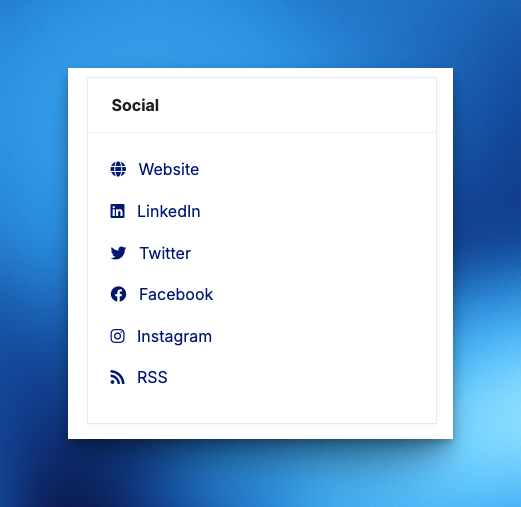
- Social links for LinkedIn, Twitter, Facebook, TikTok, Instagram, YouTube, website, and RSS feed
Main content:
- Featured press releases showing the three most recent public releases with images, titles, and dates
- All press releases listed below the featured section with pagination
Only press releases with a status of "public," "queued," or "published" appear on the media room. Draft and archived releases are hidden.
Branding Editor
You can customize the look of your media room to match your brand. From your media room page, click "Customize Branding" to open the editor.
The branding editor lets you configure:
- Theme - Choose between "Classic" (sidebar layout) and "Editorial" (alternate layout).
- Mode - Switch between light and dark mode. Selecting a mode pre-fills the color fields with sensible defaults.
- Header background color - The background color of the header banner.
- Header text color - The color of the heading and subheading text.
- Heading text - Custom heading for your media room (defaults to "Newsroom").
- Subheading text - Custom subheading (defaults to "Latest news and press releases from [Company Name]").
- Header image - Upload a background image for the header (JPG, PNG, WebP, or SVG, max 2MB). You can also remove a previously uploaded image.
- Body background color - The background color of the main content area.
- Text color - The default text color.
- Link color - The color used for links.
- Card background color - The background of content cards.
- Card border color - The border color of content cards.
Click "Save" to apply your changes, or "Reset to defaults" to restore the original settings.
Custom Subdomain
You can serve your media room from your own domain name instead of the default Press Ranger URL.
Step 1: Choose a subdomain
We recommend a descriptive name such as:
news.yourcompany.compress.yourcompany.commedia.yourcompany.com
www.yourcompany.com as your custom domain. It must be a subdomain.Step 2: Configure in Press Ranger
- Go to your company profile settings.
- Ensure the media room is set to public.
- Scroll to the "Custom media room URL" section.
- Check "Enable custom media room URL."
- Enter your chosen subdomain (without
https://). - Save.
Step 3: Set up DNS records
Create a CNAME record with your domain registrar or DNS provider:
- Name/Host/Alias: Your chosen subdomain (e.g.
news,press, ormedia) - Target/Value/Points to:
media.pressranger.com - TTL: 3600 (or "Automatic" if available)
Step 4: Wait for DNS propagation
DNS changes typically take 30 minutes to 4 hours, though they can take up to 48 hours.
Your domain also white labels your reports
Once your custom domain is live, distribution report share links for this company use it too, so clients see your domain instead of pressranger.com.
Resellers running releases for multiple clients can go further: choose one of your custom domains as an account-wide reporting domain in White-label Settings, and every report on your account uses it, no matter which company the release belongs to. No per-client domain setup required. See the White-Label Reports guide for details.
RSS Feed
Each media room includes an RSS feed of your public press releases. You can use this to auto-publish releases to your website or connect to other tools.
Suggested integrations:
- WordPress: WPeMatico
- Zapier: RSS integrations
Translating Your Media Room
Your media room can be displayed in English (default), French, Spanish, German, or Italian. To change the language, go to your company settings, select your preferred language, and save.
Hiding Press Releases
Only press releases set to "public" appear on the media room. To hide a release, edit it and change its status to "draft" or "archived."
Keeping Your Media Room Private
If you do not want a public media room:
- Go to Your Companies.
- Edit the company.
- Select "Keep my company private" in the Media Room and privacy settings section.
- Save.
Tips
- Keep your press contact email and phone number up to date. Journalists will use this information to reach you directly.
- Upload a high-quality logo. Journalists often grab logos from media rooms for articles and social posts.
- Use the branding editor to match your media room to your company's visual identity. A branded media room looks more professional than the default.
- Each company in Press Ranger gets its own media room. If you manage multiple brands, each one can have a separate, branded presence.