CRM
What is the Press Ranger CRM?
The Press Ranger CRM (Customer Relationship Management) is where you track every interaction with journalists, publishers, podcasts, and pitch requests. It gives you a visual pipeline of your outreach so you can see at a glance who you are researching, who you have contacted, who has responded, and what the outcome was.
Press Ranger's CRM uses a drag-and-drop Kanban board. Each contact appears as a card that you can move between columns as your relationship progresses. The board is accessible from the main navigation or directly at pressranger.com/crm.
Kanban Board
The CRM board has five columns that group related statuses together:
| Column | Statuses included |
|---|---|
| Researching | Researching |
| Reached out | Contacted, Followed Up |
| Pitched | Pitched, Interested, Awaiting Response |
| Committed | Negotiating, Completed |
| Passed | Passed, Not Interested, Not a fit |
Each card shows the contact's name, photo, byline, and current status badge. Click a card to go directly to their full profile.
You can drag and drop cards between columns to update a contact's status. Reordering cards within a column also works, so you can prioritize who to follow up with next.
Setting a Status
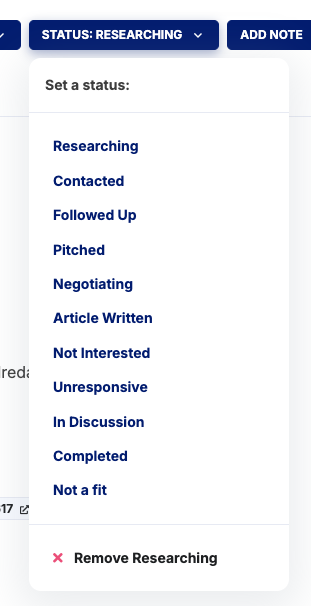
You can assign a status to any journalist, publisher, podcast, or pitch request from multiple places:
- From search results - Use the action toolbar on any card in the Journalist Database or Publisher Database.
- From a profile page - Click "Set a Status" and choose from the list.
- From the CRM board - Drag a card into a different column.
Once a status is set, the contact appears on your CRM board.
Available Statuses
- Researching - You are looking into this contact but have not reached out yet.
- Contacted - You have sent an initial message.
- Followed Up - You have followed up after the initial contact.
- Pitched - You have sent a formal pitch.
- Interested - The contact has expressed interest.
- Awaiting Response - You are waiting to hear back.
- Negotiating - You are working out details for coverage or a placement.
- Completed - The interaction is finished (e.g. article published, interview done).
- Passed - The contact declined or is not pursuing coverage.
- Not Interested - The contact explicitly said no.
- Not a fit - You decided this contact is not relevant to your campaign.
Filtering the Board
The CRM board includes filters at the top:
- Filter by type - Show only a specific contact type: Journalists, Publishers, Pitch Requests, or Podcasts. Select "All CRM entries" to see everything.
- Company - On accounts with more than one company, show only the CRM entries for a single company (see below).
- Search - Type a name to find a specific contact on the board. Search updates in real time.
The board remembers your filters, so the next time you open the CRM it picks up right where you left off.
Company Views
If your account has more than one company, each CRM entry belongs to a company so you can run a separate pipeline per client or brand. A Company dropdown appears on the board:
- All companies - The default view. Shows every entry on your CRM regardless of company.
- A specific company - Shows only that company's pipeline.
- Uncategorized - Shows entries that are not assigned to any company yet.
New entries pick up a company automatically:
- Setting a status from search results or a profile page files the contact under your currently selected dashboard company.
- Adding contacts to a contact list files them under the list's company. This includes contacts your AI assistant saves through the Press Ranger integration.
To move a card to a different company, hover over it and click the pencil icon. From there you can reassign the entry to any of your companies, mark it Uncategorized, or remove it from the CRM entirely. The same contact can be tracked under two companies at once, each with its own status.
Notes stay with the contact rather than the company, so anything you have written on a profile is visible from every company's view.
Team View
If your account supports team members, a second dropdown appears:
- Your CRM - Shows only your own contacts and statuses.
- Your entire team's CRM - Shows CRM entries from all team members on the account.
This lets managers see the full outreach pipeline across the team without switching accounts.
Removing a Status
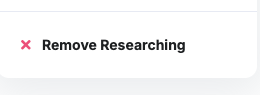
To remove a contact from the CRM:
- Go to the contact's profile page.
- Click on the status button.
- Select "Remove" from the bottom of the options.
This removes the contact from the Kanban board entirely.
Adding Notes to Profiles

You can add notes to any journalist or publisher profile to track conversation details, pitch angles, or follow-up reminders:
- Go to the contact's profile page.
- Click "Add Note."
- Enter your note and click "Save."
Notes are visible on the profile and help you keep context between interactions.
Tips
- Use the CRM as a daily dashboard. Check the "Reached out" and "Pitched" columns each morning to see who needs a follow-up.
- Set a status from the search results as soon as you identify a good contact. This saves you from losing track of people between sessions.
- Use "Not a fit" to hide contacts from future search results. This keeps your database cleaner over time.
- If you work with a team, use the team view to avoid duplicate outreach to the same contact.