Contacts
What is the Contacts page?
Contacts is where you track every journalist, publisher, podcast, and pitch request you work with. It is one table at pressranger.com/contacts, with your lists beside it.
A contact lands here when you set a status on it, add it to a list, or import it from your own file.
The Table
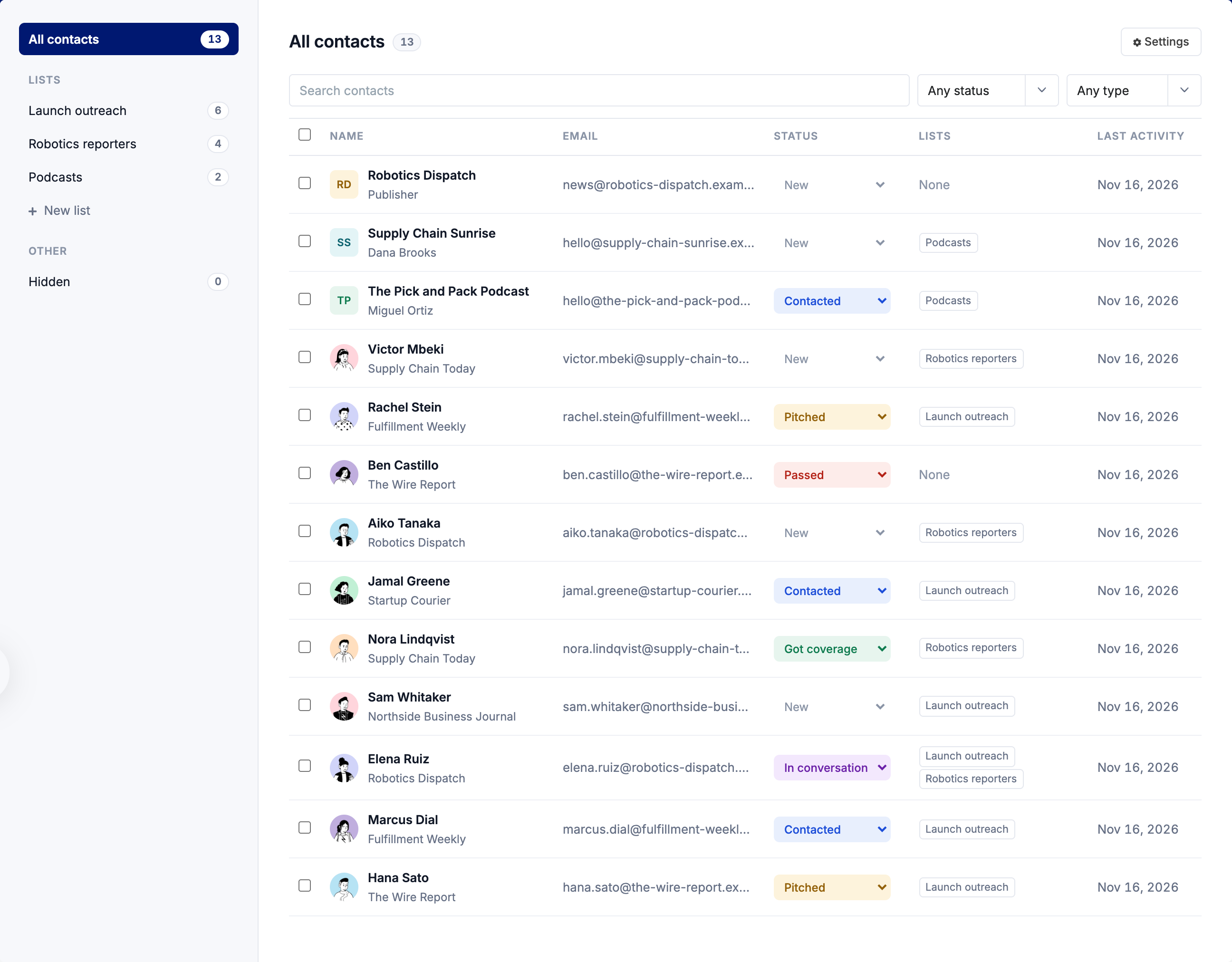
Each row is one contact. The columns show the name and outlet, email, status, lists, and last activity.
- Search - Type a name to find a contact.
- Status - Show only contacts in one status.
- Type - Show only journalists, publishers, podcasts, pitch requests, or imported contacts.
- Company - If you manage more than one company, show the contacts tracked for one of them.
- Team - If your account has team members, switch between the whole team's contacts and your own.
Change a status from the dropdown in the row. The change saves at once.
Tick the checkboxes to act on several contacts together. You can set a status, add them to a list, hide them from search, or remove them.
Lists
Your lists sit in the left column. Click one to see only its contacts. Click All contacts to see everyone. See Lists and Imports for how to build, export, and delete lists.
The Contact Panel
Click a row to open that contact in a panel on the right. You stay on the page.
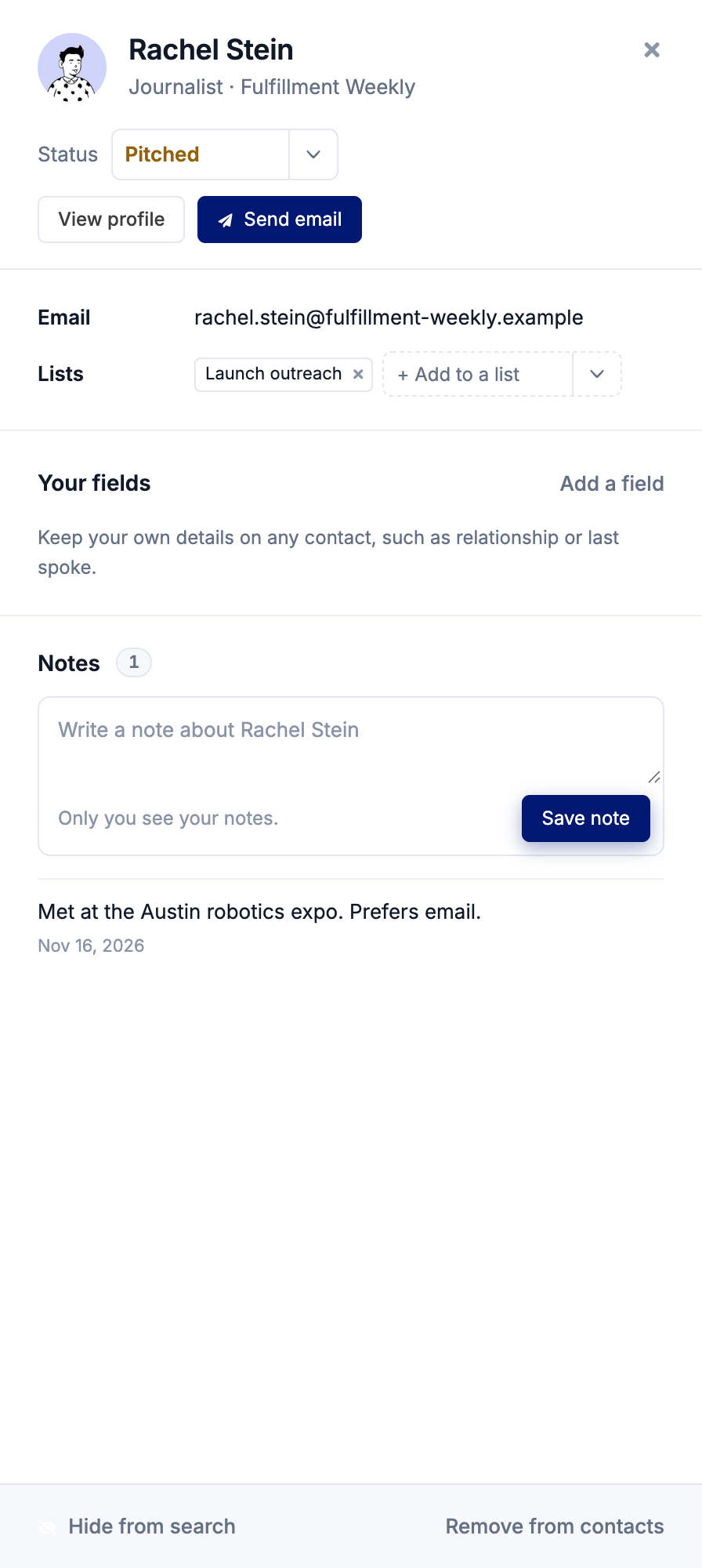
- Status - Change it from the dropdown at the top.
- Send email - Opens the email composer with the contact filled in. Sending moves the contact to Pitched, unless it is already further along.
- Lists - Add the contact to a list, or remove it from one.
- Company - If you manage more than one company, move the contact to another one.
- Your fields - Your own details on the contact. See Custom Fields below.
- Notes - Write a note and click "Save note". Only you see your notes.
- Activity - A short history of what you did with this contact.
At the bottom of the panel you can hide the contact from search or remove it from Contacts.
Setting a Status
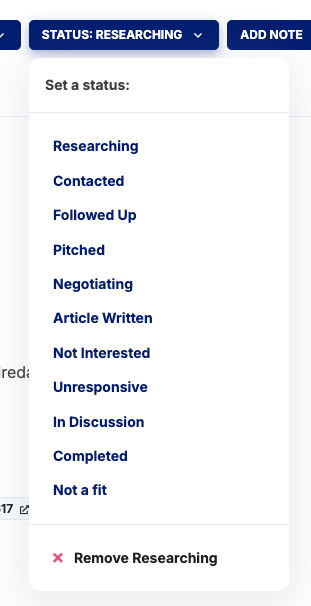
You can set a status from three places:
- Search results - Click "Actions" on any card, then "Set a status", in the Journalist Database or Publisher Database.
- A profile page - Click "Set a status" and choose from the list.
- Contacts - Use the dropdown in the row or in the contact panel.
Available Statuses
- New - The contact is in your Contacts and you have not reached out yet. A contact starts here when you add it to a list or import it.
- Contacted - You sent a message.
- Pitched - You sent a formal pitch. Sending an email from Press Ranger sets this for you.
- In conversation - The contact replied and you are talking.
- Got coverage - The contact ran the story, published the interview, or booked you.
- Passed - The contact said no or did not reply.
"Not a fit" is separate. It is not a status. It hides a contact from your search results. See Hidden Contacts below.
Custom Fields
Custom fields are your own details on a contact, such as "Relationship" or "Last spoke". They work on every contact, including journalists from the Press Ranger database. Only your team sees them.
To add a field, click Settings on the Contacts page and open Custom fields. Type a name and click "Add field". You can have up to 30.
To fill one in, open a contact and click the value under Your fields. Type, then click away or press Enter. A green check confirms the save.
In Settings you can also:
- Rename a field by clicking its name.
- Reorder fields with the arrows.
- Show in table to add the field as a column in the Contacts table.
- Remove a field. This deletes its value on every contact, and Press Ranger shows you how many before you confirm.
Hidden Contacts
Click "Not a fit" on a search result, or "Hide from search" in the contact panel, to keep a contact out of your search results. Find hidden contacts under Hidden in the left column. Open one and click "Unhide" to bring it back.
Team and Company Views
If your account has team members, Contacts shows the whole team by default. Switch the team filter to "Only mine" to see your own.
If you manage more than one company, each contact's status belongs to one company. The same journalist can be Pitched for one company and New for another. Use the company filter to see one company at a time.
Removing a Contact
Removing a contact from a list keeps it in Contacts. To remove it everywhere, open the contact and click "Remove from contacts". This takes it off every list and clears its status. Your notes stay on the contact's profile.
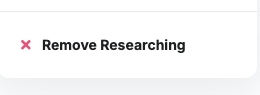
You can also clear a status from a search result or a profile page: open the status menu and select "Remove" at the bottom.
Tips
- Filter by "Contacted" or "Pitched" each morning to see who needs a follow-up.
- Set a status from search results as soon as you find a good contact, so you do not lose track between sessions.
- Use "Not a fit" to keep people you ruled out away from future searches.
- Add a "Relationship" custom field and show it in the table to see your warm contacts at a glance.