Lists and Imports
What is a List?
A list is a saved group of contacts. PR teams use lists to organize outreach by campaign, topic, or region. Build a list once and reuse it across campaigns and email outreach.
You can create as many lists as you need. A list can hold journalists, publishers, podcasts, and your own imported contacts. One contact can sit on several lists.
Lists live in the left column of the Contacts page at pressranger.com/contacts.
Creating a List
- Open Contacts and click "New list" in the left column.
- Enter a name.
- Select the company the list belongs to.
- Optionally add a description.
- Click "Save."
You can also create a list from any search page with the "Add a new Contact List" option in the dropdown.
Adding Contacts to a List
- From a profile - Use the "Add to Contact List" dropdown on a journalist or publisher profile.
- From search results - Use the action menu on a card, or tick several results and choose "Add All to Contact List" in the toolbar. This works in the Journalist Database, Publisher Database, and Article Database.
- From Contacts - Open a contact and use "Add to a list" in the panel, or tick several rows and use "Add to list".
Adding a contact to a list does not change its status.
Viewing a List
Click a list in the left column. The table shows only that list's contacts. The search and filters work the same as on All contacts.
Exporting to CSV
Open a list and click "Export". The file includes contact details, emails, your notes, and your custom fields. Your plan has a monthly export limit for contacts from the Press Ranger database. Contacts you imported yourself do not count against it.
Editing and Deleting a List
Open a list and click "Edit list" to change its name, company, or description.
Click "Delete list" to remove it. Press Ranger asks what to do with its contacts:
- Keep the contacts - They stay in Contacts with their status and notes.
- Remove the contacts that are only on this list - Contacts on another list stay. Press Ranger shows how many will be removed before you confirm.
Importing Your Own Contacts
You can import contacts from a CSV or Excel file. Imported contacts are private to your account and your team. Press Ranger does not add them to its database or show them to other users.
Import is available on the Pro and Pro Plus plans, and on AppSumo plans at tier 3 and up.
-
Open Contacts and click Import contacts.
-
Upload a CSV or XLSX file. Each row needs an email address. A file can hold up to 10,000 rows. Click "Download an example CSV" to see the columns Press Ranger reads best.
-
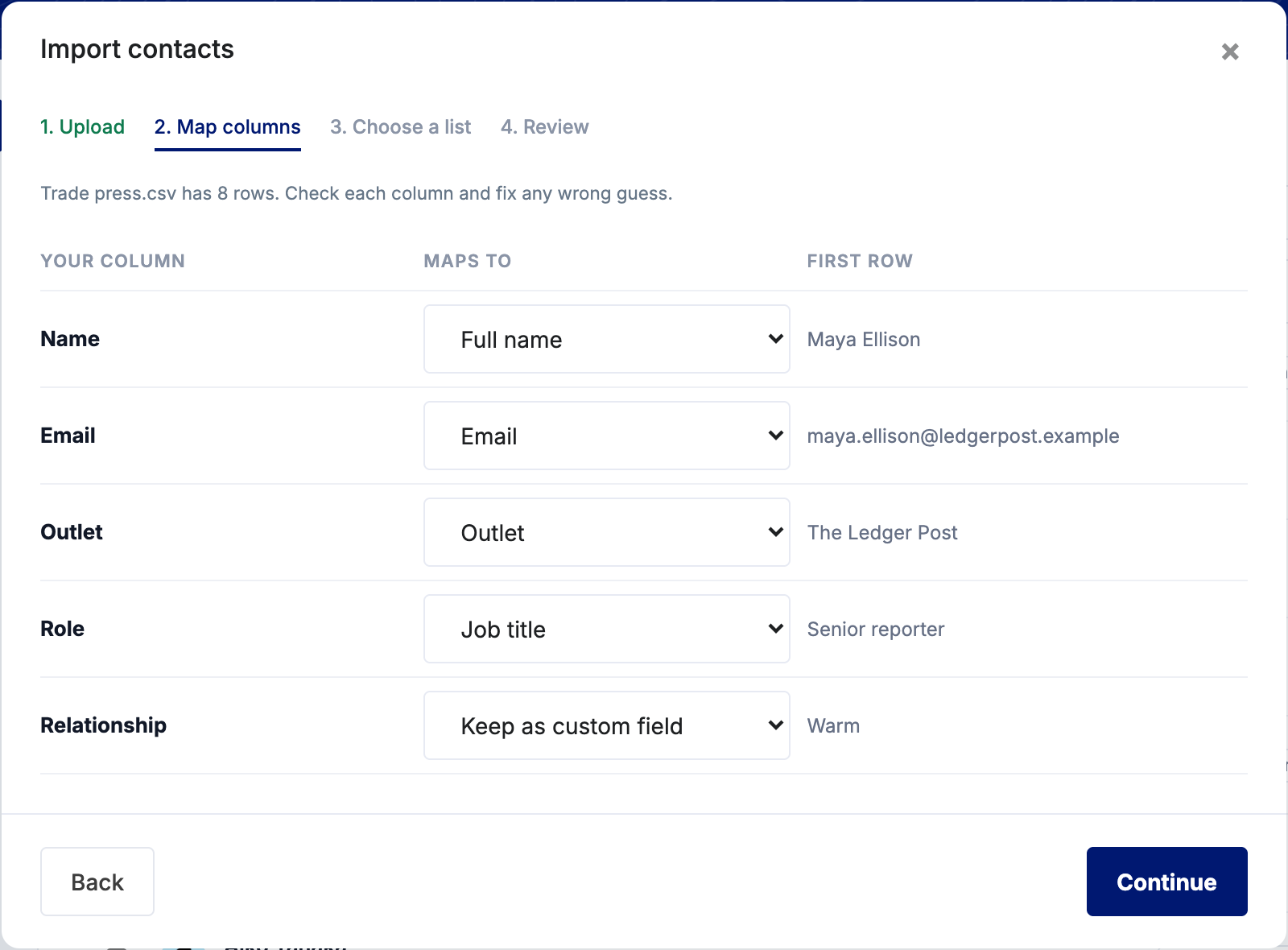
Map columns. Press Ranger matches your columns to its fields. Check each one and fix any wrong guess. A column that matches nothing is kept as a custom field.
-
Choose a list. Add the contacts to a new list, a list you already have, or no list.
-
Review the counts, then click "Import".
How the import treats your rows:
- New - A contact with an email you have not imported before.
- Updated - An email you imported earlier. The contact is updated. A blank cell never wipes a value you already have.
- Matched - The email belongs to a journalist in the Press Ranger database. If you already track that journalist, your details are added to that entry and no second copy is made.
- Skipped - A row with no email, an email that is not valid, or an email that repeats an earlier row. After the import you can download the skipped rows with the reason for each.
To edit an imported contact, open it and click any value. To undo an import, click Settings, open Imports, and click "Undo" next to it. This deletes the contacts that import added.
Using Lists with Campaigns
Lists connect to Press Ranger campaigns. When you create a campaign, you pick a list to target. See Campaigns for more.
Tips
- Create a list for each campaign or topic so you can track outreach per project.
- A contact can live on several lists. If a journalist fits two campaigns, add them to both.
- Import your existing media list first, then add Press Ranger journalists to the same lists.